The agency back office, screen by screen
What you get on Multi-Site 10 and how you use it day to day. These are screens from the live product, shown with a fictional agency and fictional clients.
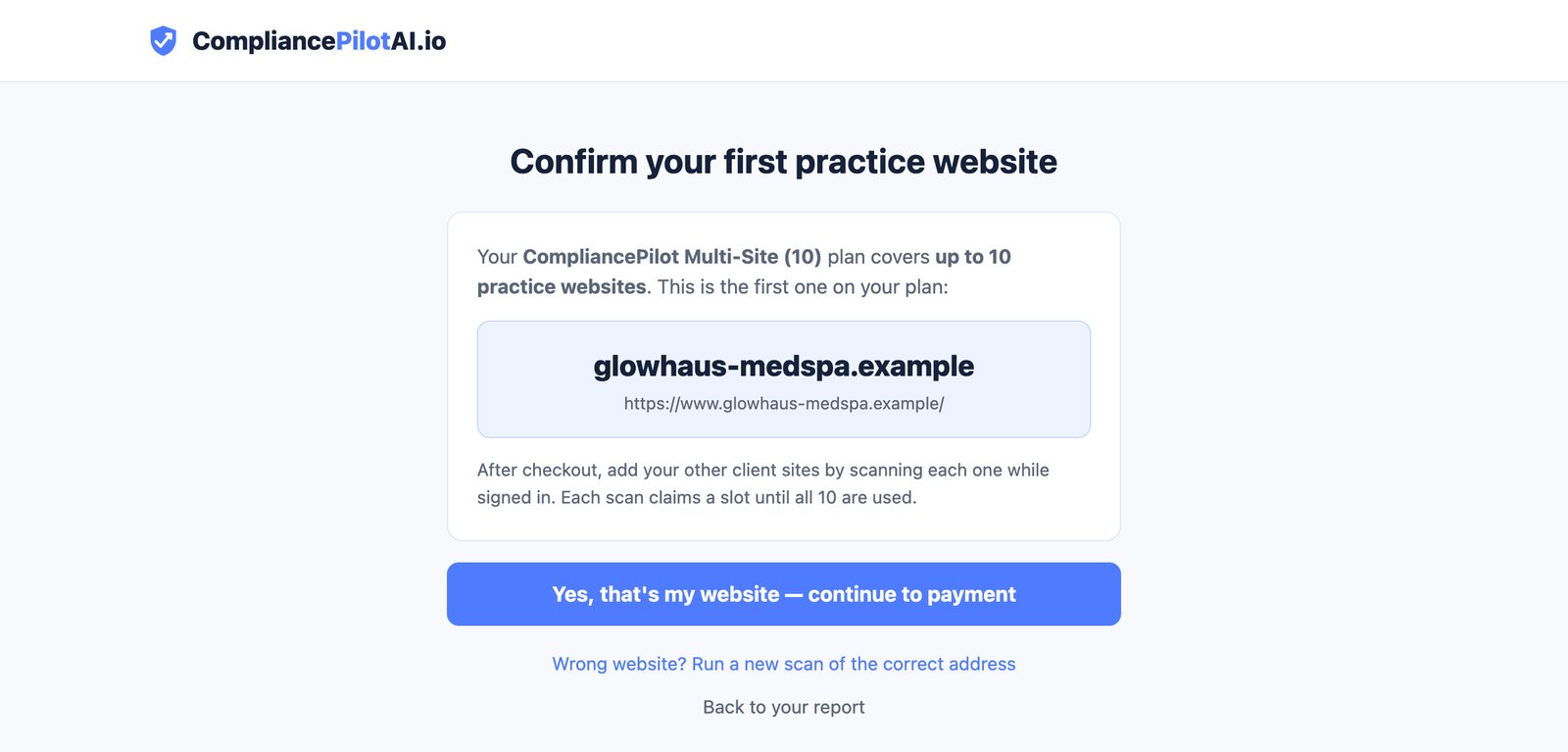
Scan your first client and choose Multi-Site 10
Run the free scan on one client's website, then unlock Multi-Site 10 from that report. Before checkout you confirm the site, so a typo never ends up on your plan. After that, every client site you scan while signed in takes the next slot automatically, until all 10 are used.
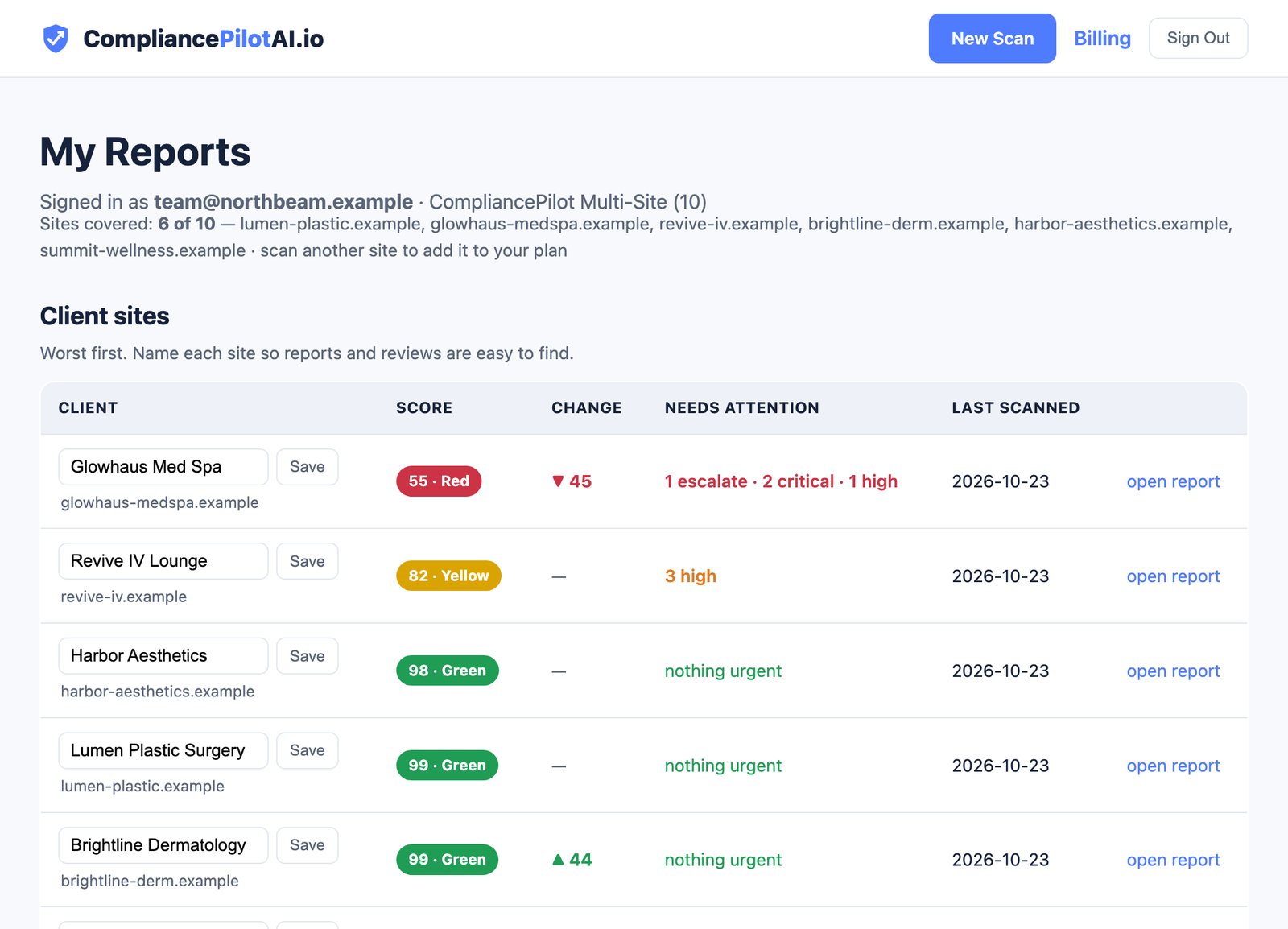
See every client on one dashboard, worst first
Sign in and My Reports opens on your client list. Each row shows the client's current score, how far it moved since the last scan, and what needs attention, sorted so the client in trouble is the top row. Give each site the client's name so it's easy to find.
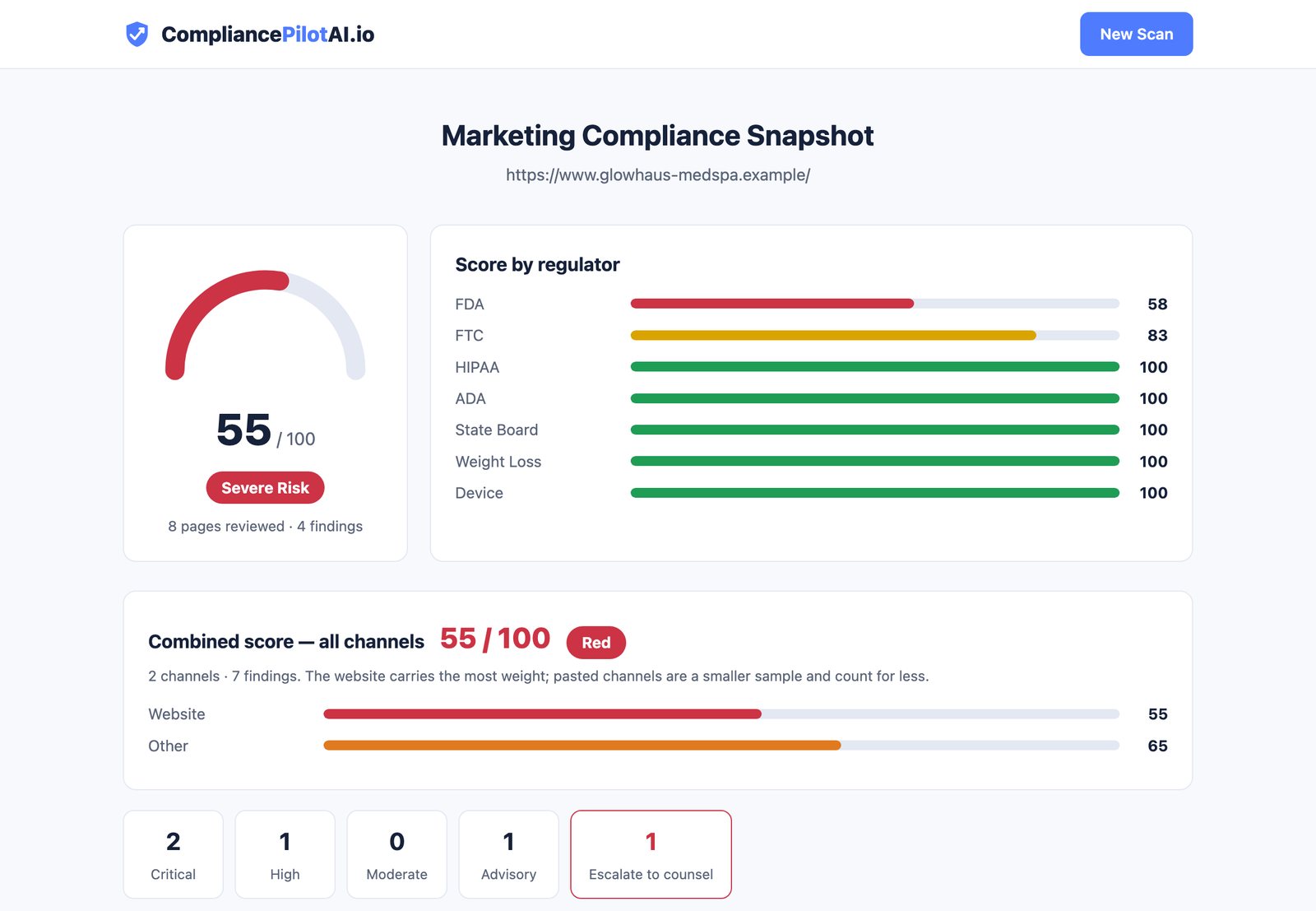
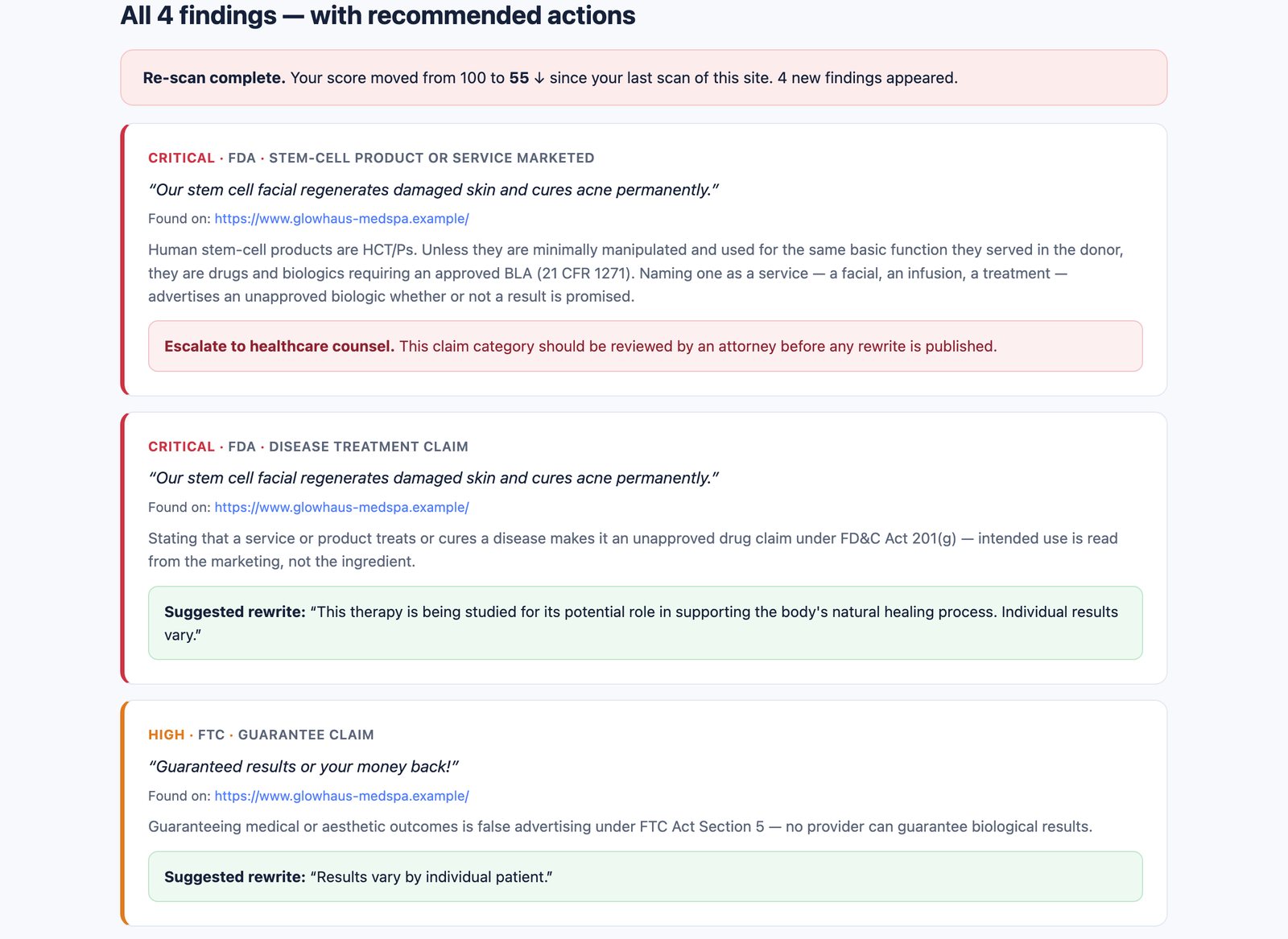
Open any client's full report
Each client gets a full website audit with AI deep analysis: an overall score, a breakdown by regulator, and every finding with the sentence that triggered it, why it's a problem, and what to do about it.
Hand clients a PDF under your agency's name
Download the full report as a PDF to send to your client. Send us your logo, agency name and brand color once, and every PDF carries them, with no mention of CompliancePilotAI.io.
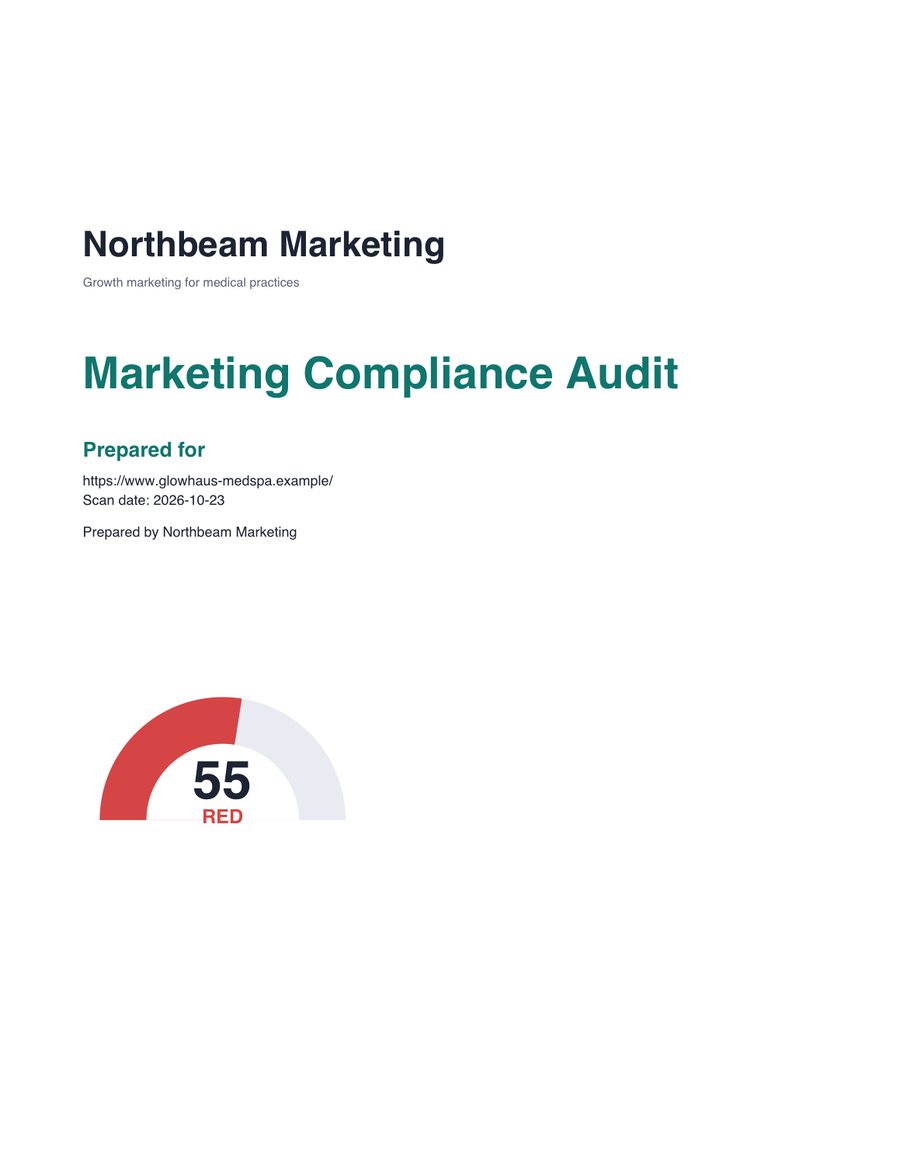
Only the PDF is white-labeled. The online report and the emails we send you carry our name, so share the PDF with your client rather than the link.
Check posts and ads before they go live
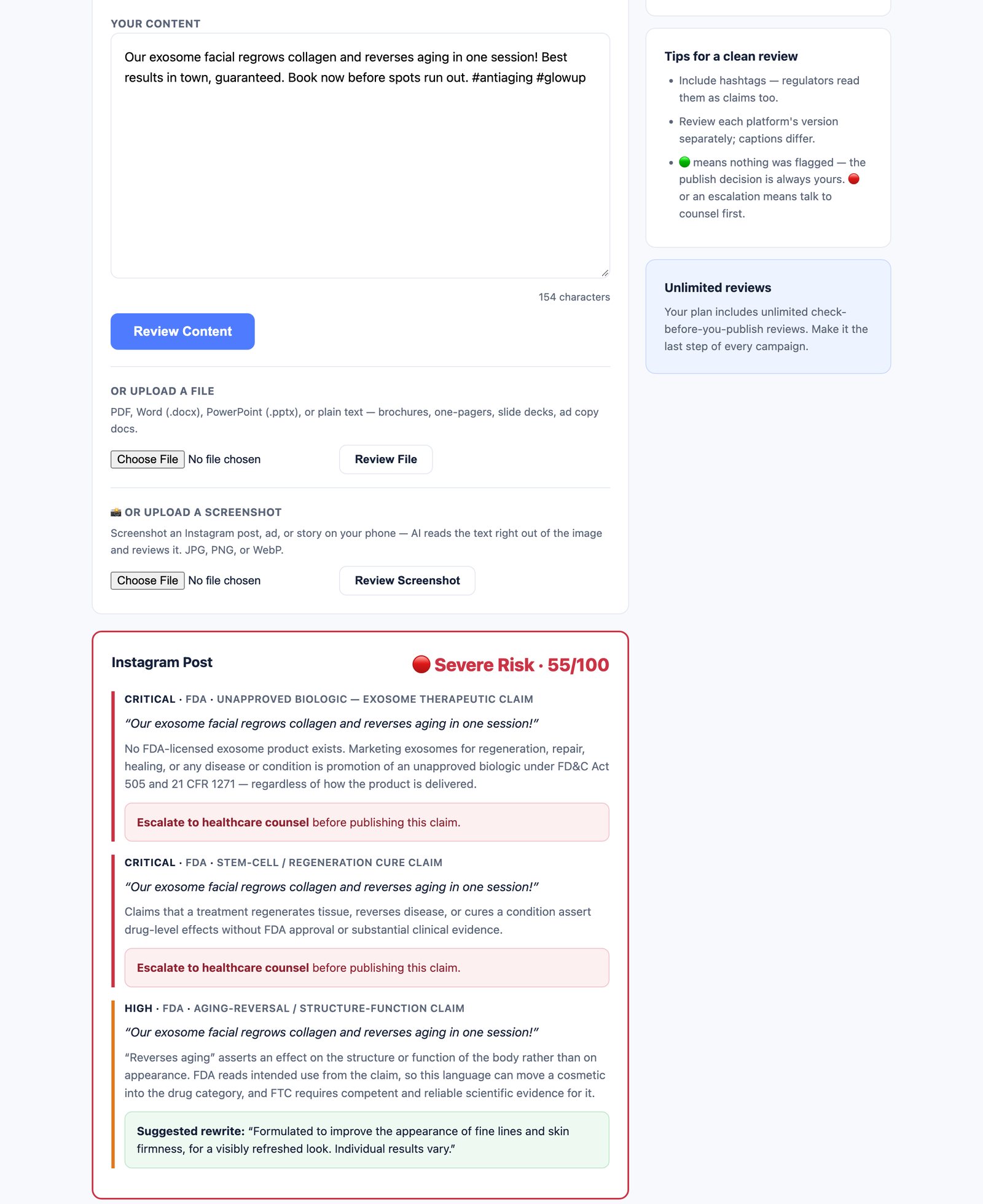
From any client's report, open Check Before You Publish. Paste a caption, ad or email, upload a brochure or slide deck, or drop in a screenshot of a post. It's reviewed against the same 42 rules, with a fix for each problem. Reviews are unlimited.
Rescans land in your inbox every month
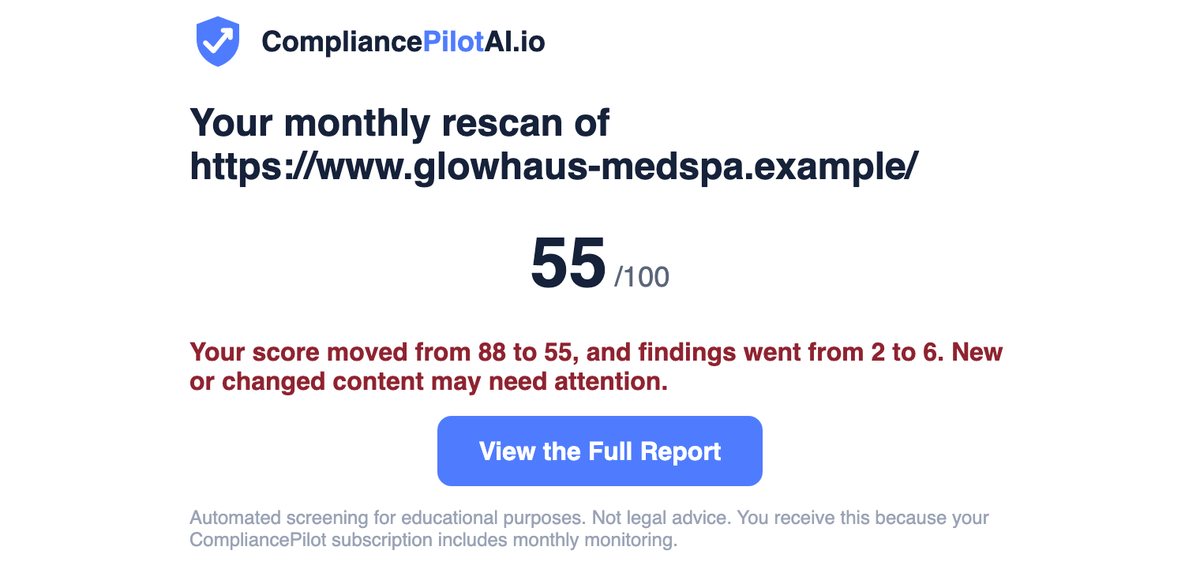
Every client site is rescanned each month, and you get an email for each one showing the score before and after, with a link to the new report. A drop usually means someone published new copy, and you'll know before the client's regulator does.
Managing your plan
- Add a client: scan their site while signed in. It takes the next open slot.
- Swap a client: email us and we'll move the slot. Slots are for clients you actively serve.
- Change your branding: email us a new logo, name or color.
- Rescan after a fix: rescan any site from its report to confirm the problem is gone, at no extra charge.
- Billing and cancellation: manage your card or cancel from Billing at any time. Cancellation takes effect at the end of the period you've paid for.
Ready to add your first client?
The scan is free, and there's no card until you choose a plan. The first five agencies can lock in $499 a month for a year.
Scan your first client's site See the founding offerAutomated screening for educational purposes. Not legal advice, and not a certification that any website complies with any law. Findings marked for escalation should be reviewed by qualified healthcare counsel.